 Zones
Zones
Windows never where you want them?
Snap windows on your Mac right where you want them.
Dragging and resizing windows by hand takes time, and they still land in the wrong place. Zones puts each window in place with one key or one drag.
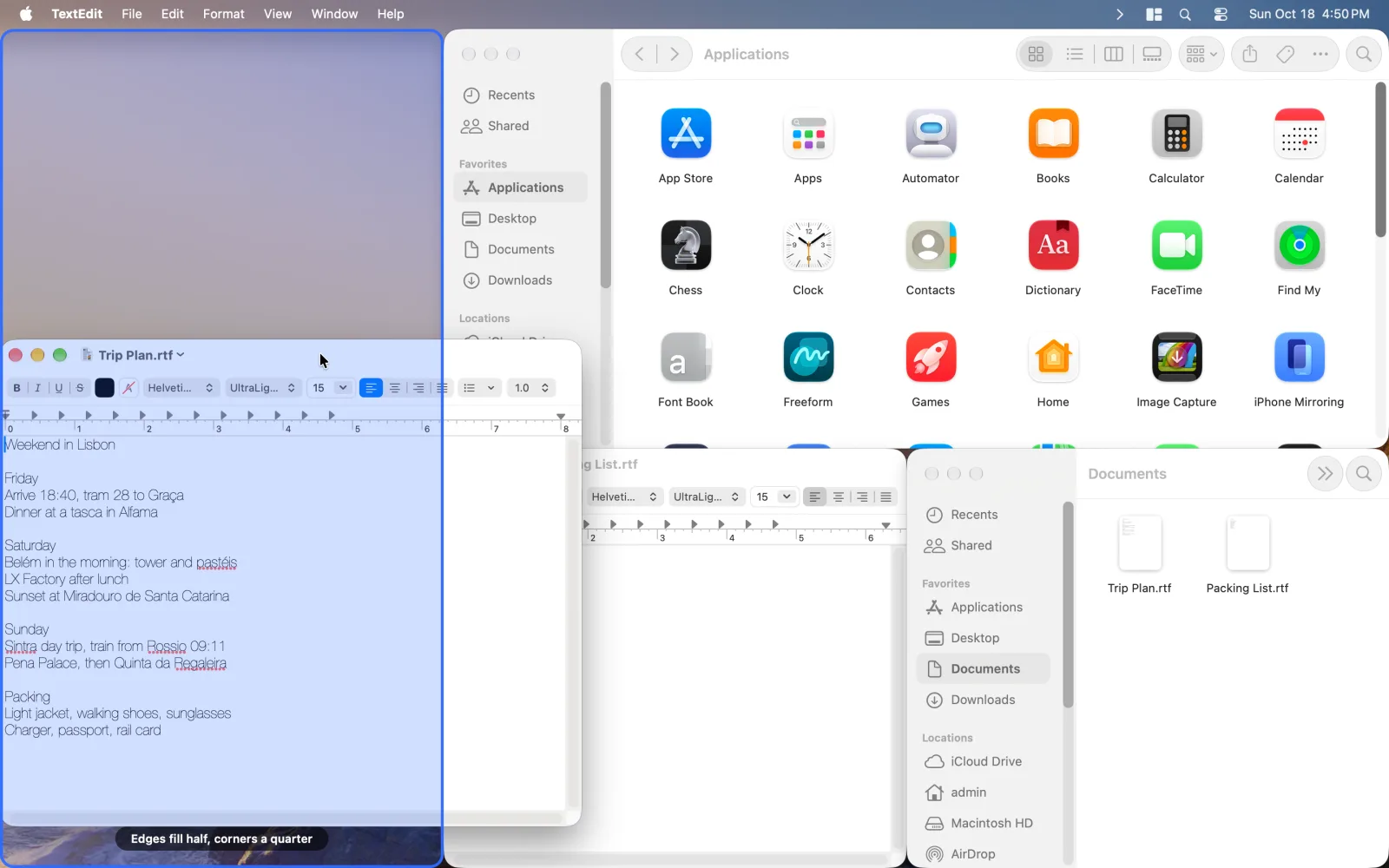
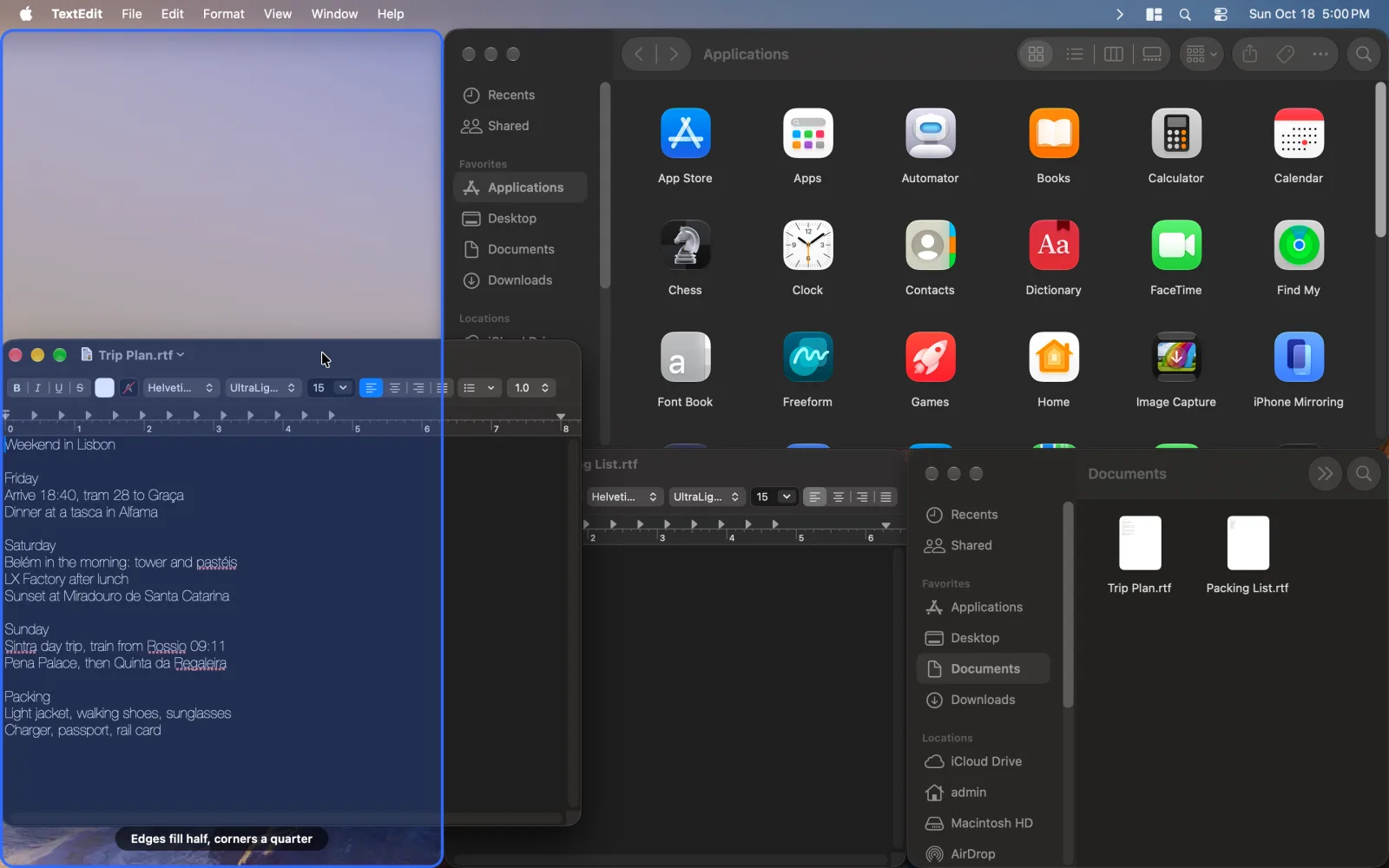
What you get with Zones.
- Drag to snapHold Shift and drag a window by its title bar. Drop it on a zone and it fills that zone.
- A shortcut for every sizeHalves, thirds, quarters, maximize and center from the keyboard. Press a half again for two-thirds, then one-third.
- Every display, its own layoutEach display keeps its own zones. Send a window to the next display with one shortcut.
- Draw your own layoutProSplit or merge any zone, then drag a divider to resize it. Sizes show in pixels.
Keyboard shortcuts
Change any shortcut in Settings.
- Left and right half
- ⌃⌥←/→
- Top and bottom half
- ⌃⌥↑/↓
- Left, center and right third
- ⌃⌥D/F/G
- Quarters
- ⌃⌥U/I/J/K
- Maximize or return
- ⌃⌥↩
- Center
- ⌃⌥C
- Restore the previous size
- ⌃⌥⌫
- Next and previous display
- ⌃⌥N/P
- Drag to snap
- ⇧drag
Free to start. Pro when you want more.
Try every Pro tool free for 14 days, with no card and no account.
Free
- Halves and thirds on every display
- Every window shortcut
- Drag to snap
Lineup Pro from $10 a month billed yearly
- Draw your own zones on each display
- Resize zones with a drag
- Every other Pro tool
- Download freemacOS 13 or later, on Apple silicon and Intel. No account.
- Turn on the tools you needZones starts on.
- WorkYour Mac now works the way you do.
 Cycler
 Hyperkey
 Display Control